Create your campaign
For: Advertisers and media buyers launching a campaign in AdWave.
This page walks you through the Create Campaign flow, one section at a time. Have your launch worksheet from Start here open: every choice below is already on it.
Before you start
Create Campaign stays locked until your data setup is done. Check that:
- ✅ Your Product shows Active (Connect tracking)
- ✅ Your wallet has funds (Account and wallet)
- ✅ Your creatives and landing page are ready (Creatives, Landing page)
Then go to Campaign in the left menu and click + Create Campaign, or click Create Campaign on the AdWave home page.
The flow is one long page. The steps on the left show where you are; click one to jump to it.
1. Product
Select the Product you want to promote.
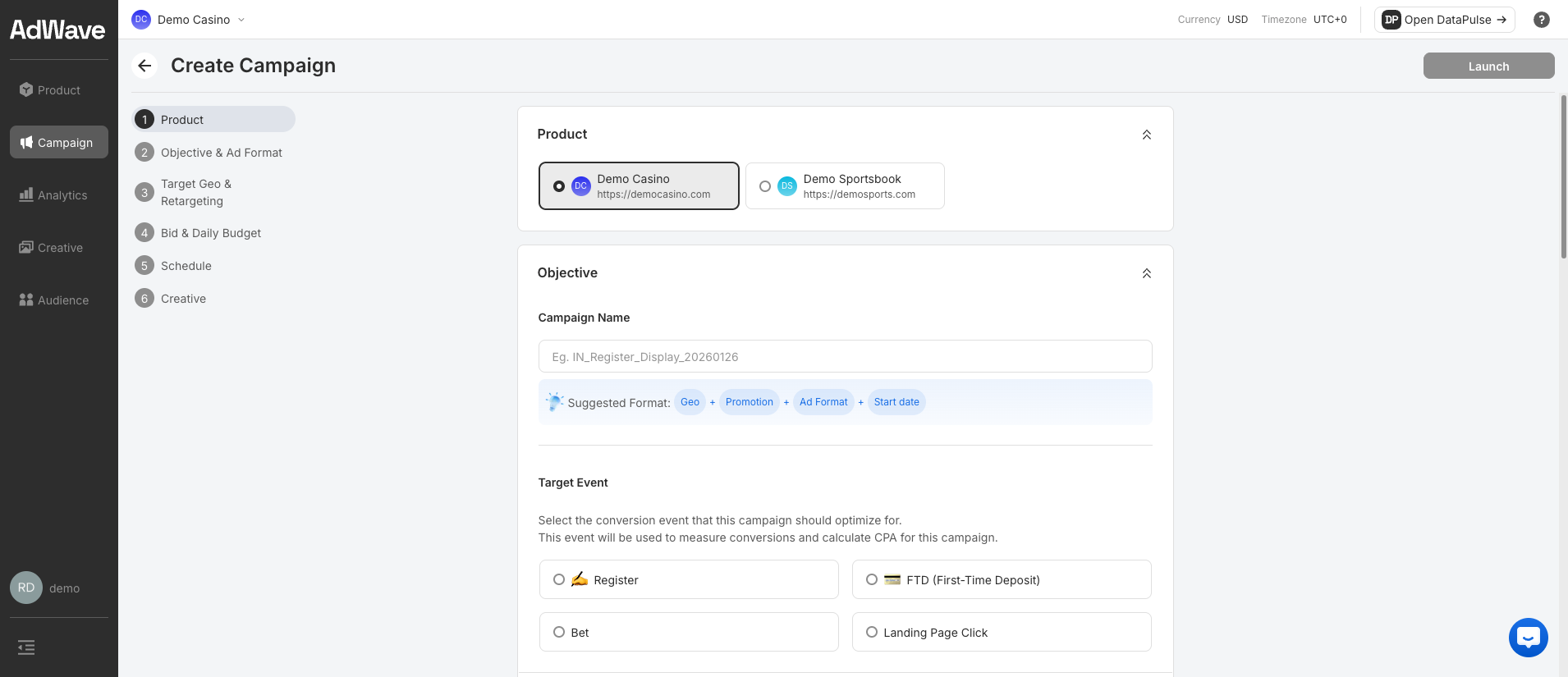
Only Active Products can be selected; Products that are not yet Active are greyed out. If yours is greyed out, finish tracking setup first.
2. Objective and ad format
Campaign name. Use the suggested format Geo + Promotion + Ad Format + Start date, for example IN_Register_Pop_20261001. It keeps reports easy to read.
Target event. Choose the conversion this campaign should optimise for. AdWave also uses it to calculate your CPA (cost per acquisition).
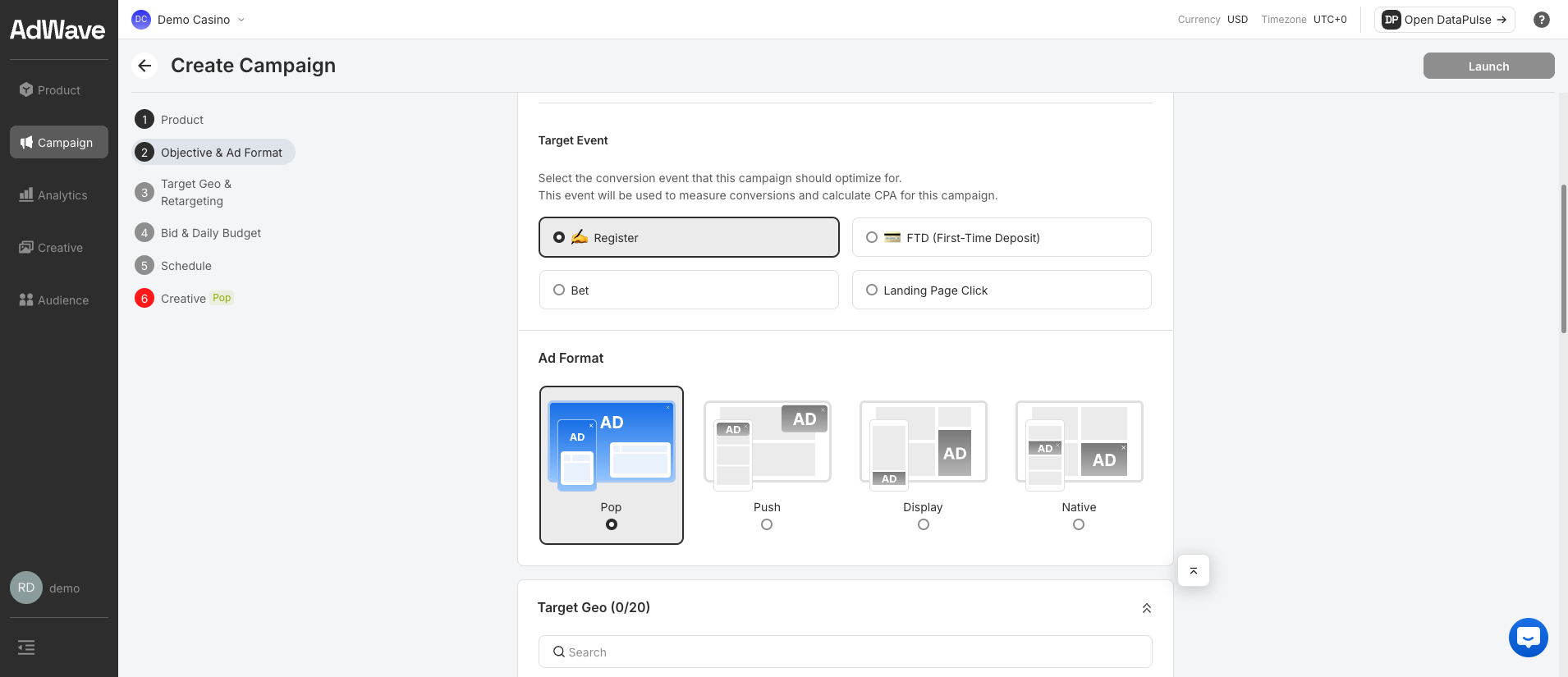
| Target event | Optimises for | Choose it when |
|---|---|---|
| Register | New sign-ups | Recommended for your first campaign. You track registrations with the Web Tracker |
| FTD (First-Time Deposit) | A player's first deposit | Deposits are tracked reliably (S2S or Partner Postback) |
| Bet | Players placing bets | You send bet events through S2S |
| Landing Page Click | Any click on your landing page | You want volume signals before registrations are tracked. Registrations are a stronger signal, so prefer Register when you can |
Ad format. Choose one: Pop, Push, Display or Native. The creative fields in step 6 change to match. Not sure? See Launch worksheet → Ad format.
3. Target geo and retargeting
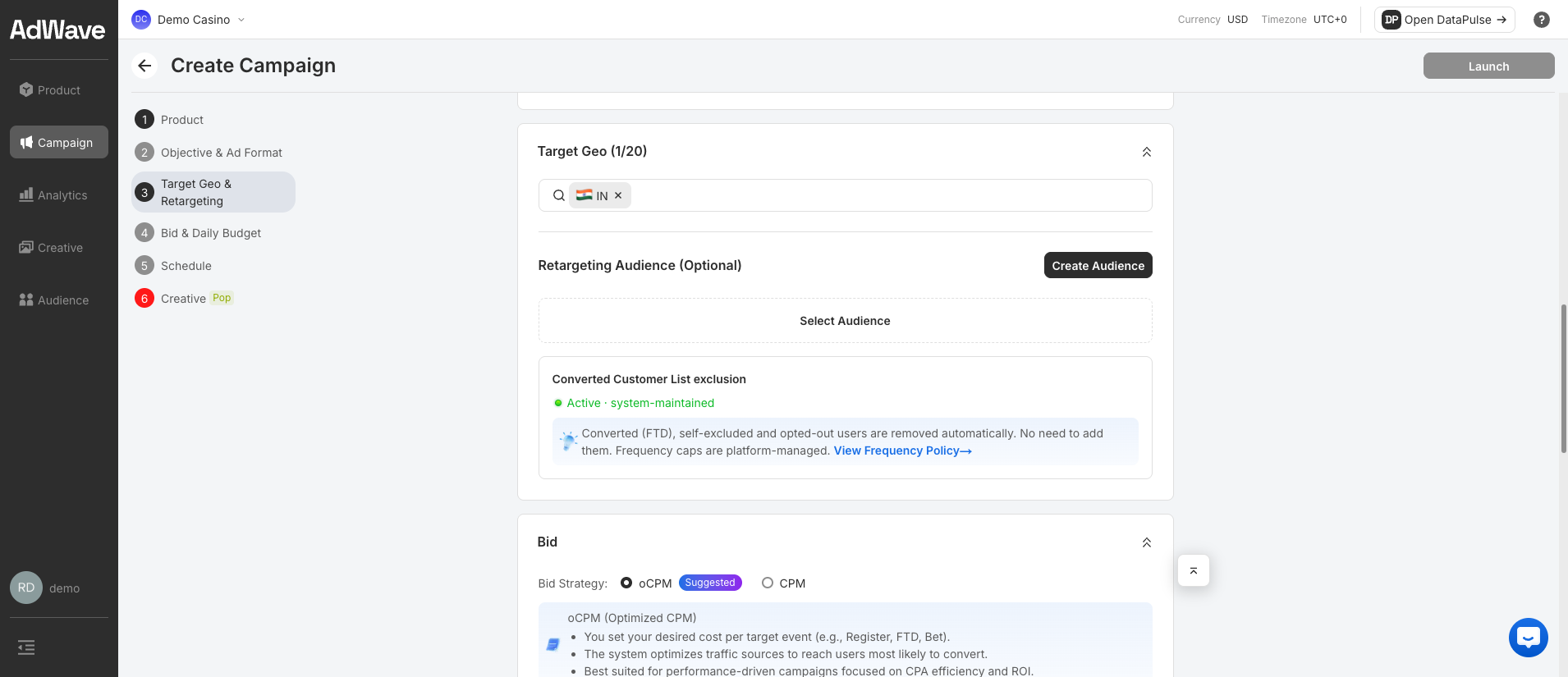
Target Geo. Search for and add the countries or regions to target, up to 20 per campaign. For a first test, start with 1–3 markets.
Retargeting Audience (optional). Show ads only to players in an audience segment you have built, for example people who registered but did not deposit. Leave it empty for your first campaign. To build one, click Create Audience or see Audience → Segments.
Converted Customer List exclusion. This is on automatically. AdWave stops showing your ads to players who have already made a first deposit (FTD), and to self-excluded and opted-out users. You don't need to set anything up. Frequency caps (how often one person sees your ads) are also managed by the platform.
Match geo and language
Each market needs creatives in its own language. If your markets use different languages, run one campaign per language.
4. Bid and daily budget
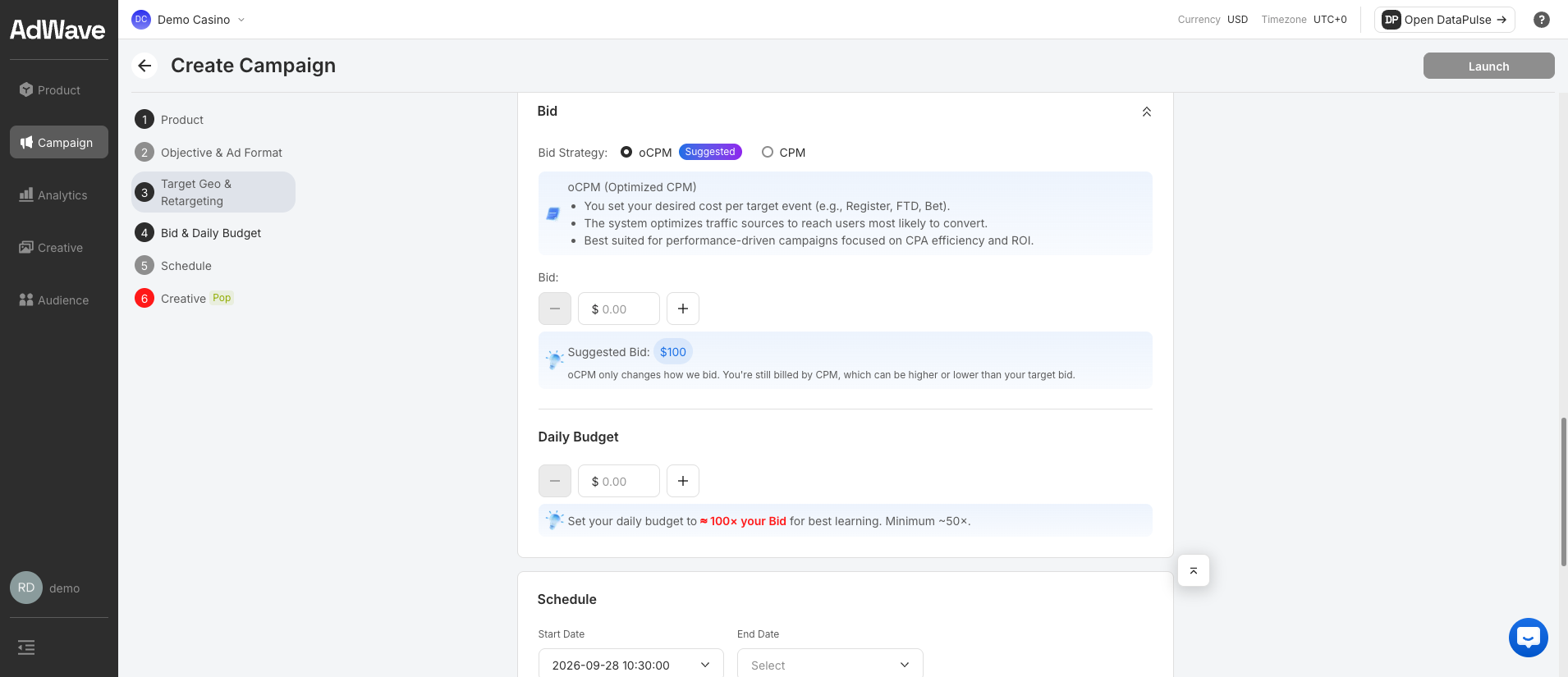
Bid strategy. Choose oCPM (marked Suggested).
| Strategy | How it works | Use when |
|---|---|---|
| oCPM (optimised CPM) | You set the cost you want to pay per target event (for example, per registration). AdWave finds the traffic most likely to convert | Most campaigns, including your first |
| CPM | You set the most you will pay per 1,000 impressions (Maximum CPM Bid). AdWave maximises reach up to that price | Awareness campaigns focused on reach and frequency |
Bid. With oCPM, your bid is the cost you want to pay per target event, for example $2.50 per registration. Set it to the cost per acquisition (CPA) you can afford. AdWave also shows a Suggested Bid; if it is far from your target CPA, check with your Account Manager before you launch. You are still billed per 1,000 impressions, so the cost per event you actually get can be higher or lower than your bid.
Daily budget. With oCPM, set it to about 100× your bid so AdWave has enough data to learn each day. The minimum is about 50×. With CPM, the minimum is 20× your bid.
| Your bid | Recommended daily budget | Minimum daily budget |
|---|---|---|
| $2.50 | $250 | $125 |
| $5.00 | $500 | $250 |
A budget that is too small slows learning
With too little budget, AdWave sees too few conversions to optimise, and results stay unstable. If the recommended budget is more than you can spend, target fewer geos rather than lowering the budget below the minimum.
5. Schedule
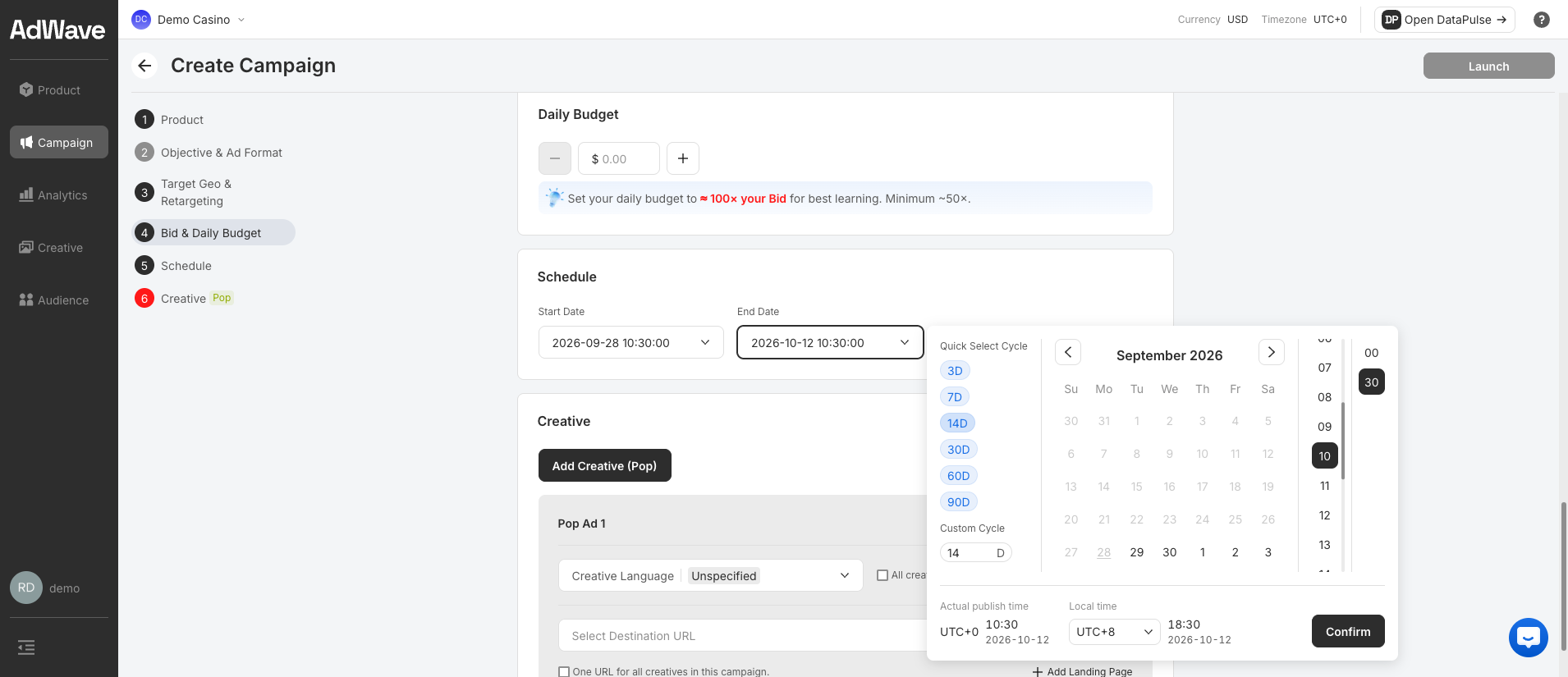
- Start date: starts now by default. You can pick a future date.
- End date: required. Pick a date, use Quick Select Cycle (3D / 7D / 14D / 30D / 60D / 90D), or type a number of days in Custom Cycle. Click Confirm.
Times are in UTC+0
The campaign runs on UTC+0 (shown as Actual publish time). Use the Local time selector in the picker to check what that is in your time zone.
For a first test, choose 14 days. It gives AdWave time to learn and you enough data to judge results.
6. Creative
Click Add Creative (format) to add each ad. The fields depend on your ad format; see Creatives → Specs.
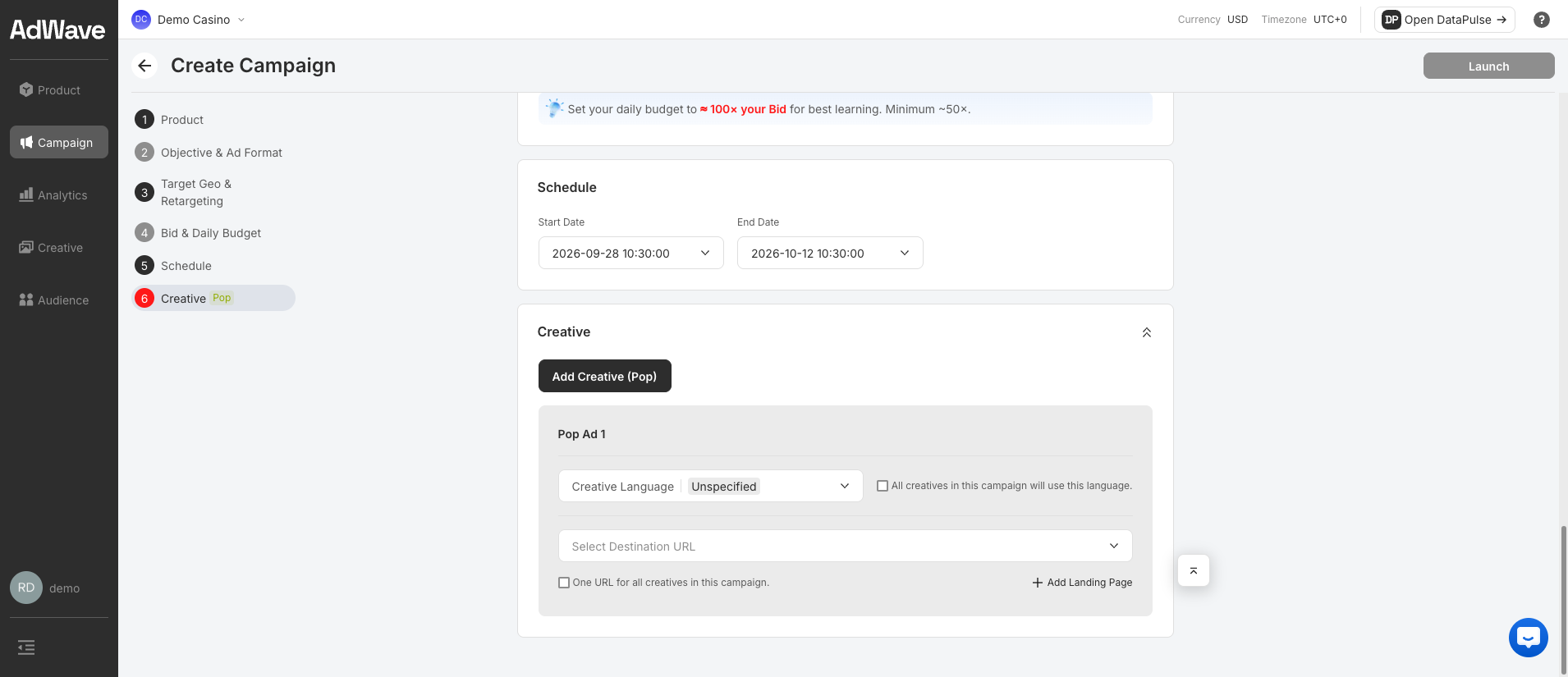
Pop needs only a language and a Destination URL, because Pop opens your landing page directly:
Display, Native and Push also need images. Click Upload or Drag your file here, or Add from library to reuse creatives you have already uploaded. You can upload up to 20 images at once. The accepted formats and sizes are shown in the upload box:
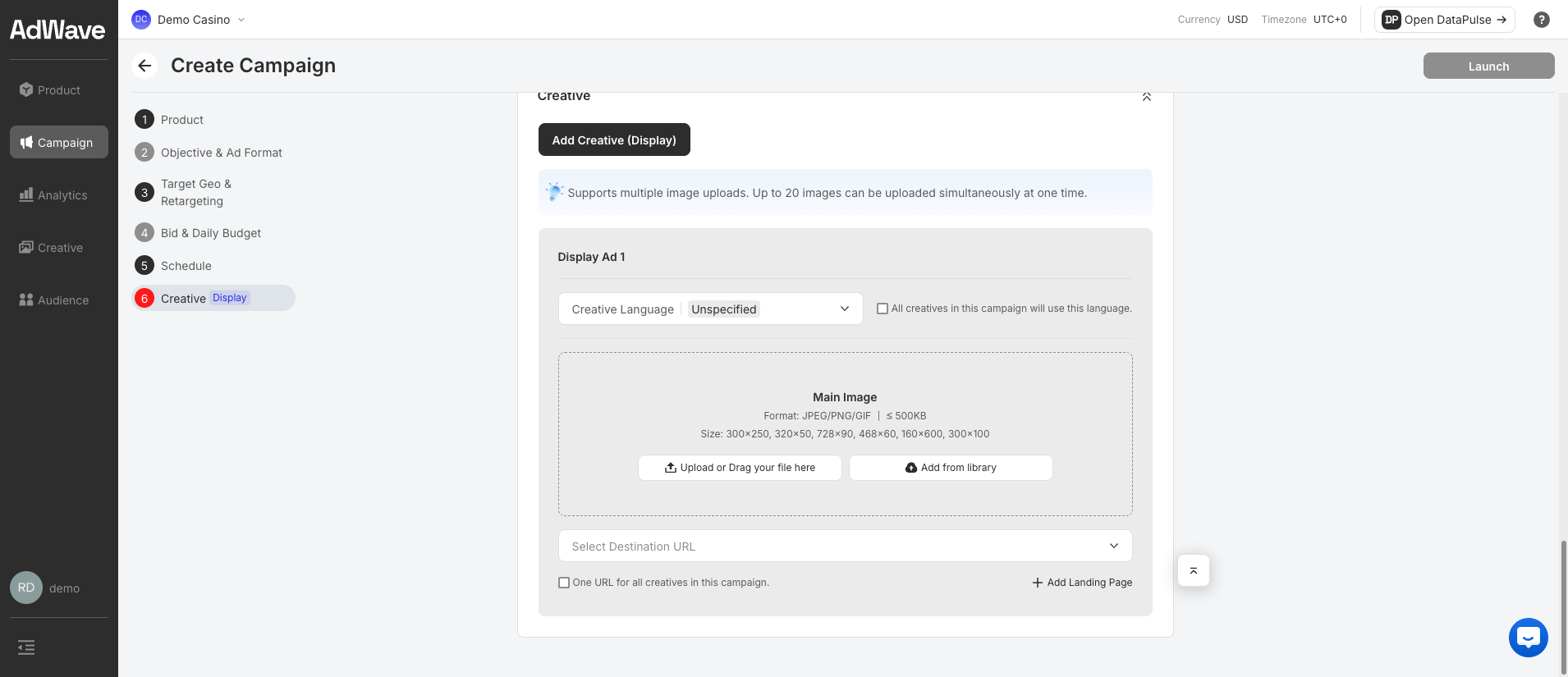
For each creative, set:
- Creative language: the language of the ad. Tick All creatives in this campaign will use this language to apply it to all.
- Destination URL: the landing page players go to. Tick One URL for all creatives in this campaign to reuse one URL, or click Add Landing Page to register a new one.
The Destination URL must be registered
It must belong to a registered, active domain on your Product, or the campaign will not serve.
7. Launch
When every section is complete, click Launch at the top right. There is no separate review step: the campaign starts at the scheduled time.
Final check:
- ✅ Active Product selected
- ✅ Campaign name follows the suggested format
- ✅ Target event chosen (Register for a first campaign)
- ✅ One ad format chosen
- ✅ 1–20 geos added, with matching creative languages
- ✅ oCPM bid set to your target cost per event; daily budget about 100× the bid
- ✅ Schedule set (14 days for a first test)
- ✅ Creatives added to spec, each with a language and a registered Destination URL
Your campaign now appears in the Campaigns list, with its status, running days, daily budget and delivery metrics.
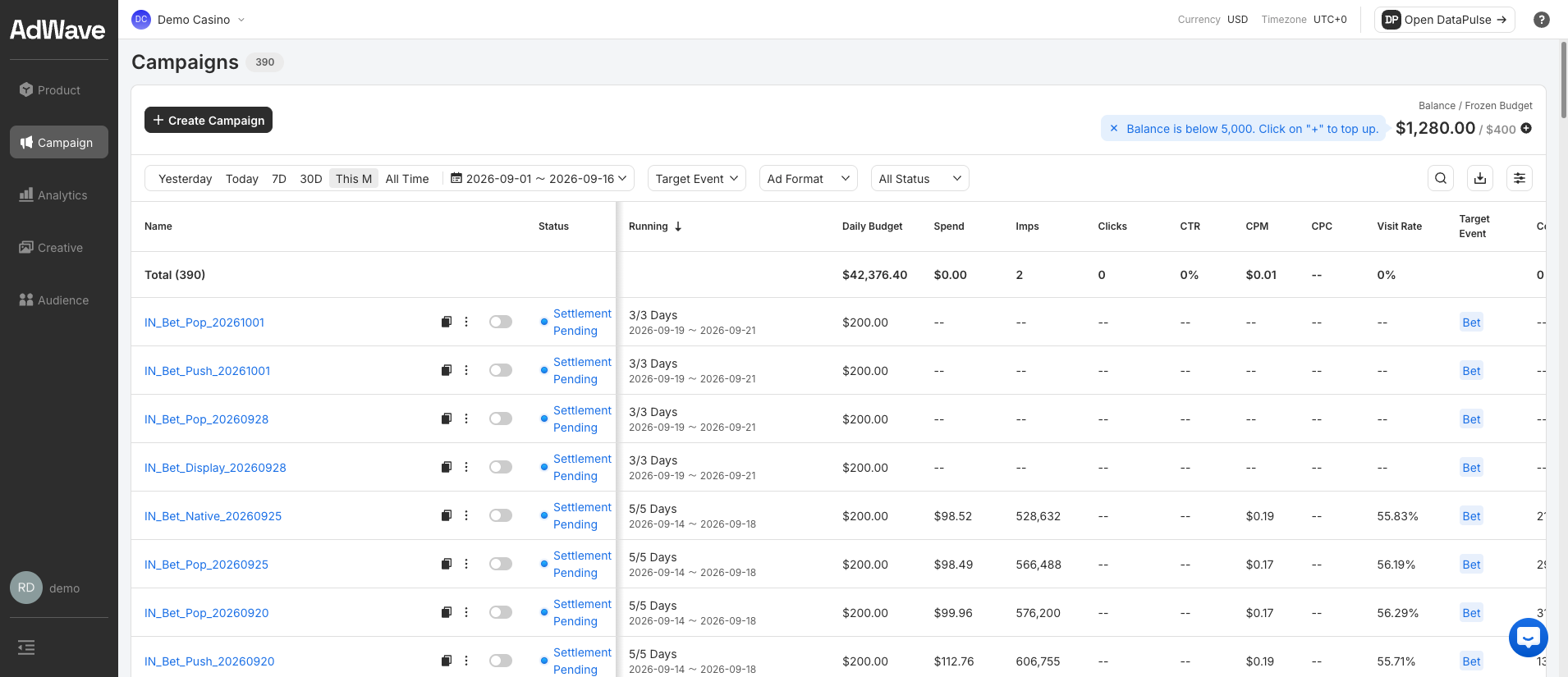
| Status | Meaning |
|---|---|
| Live | The campaign is running |
| Ended | The campaign has finished and is settled |
| Settlement Pending | The campaign has ended, and its final spend is being settled |
Next: Your first week