Start here: launch your first campaign
For: New self-serve advertisers — business owners, marketers and media buyers running their first campaign on RevoSurge. No prior programmatic experience needed.
By the end of this handbook you will have a funded account, a Product that records your conversions, and a live campaign in AdWave, RevoSurge's campaign tool.
1. How it works
RevoSurge shows your ads to players across many websites and apps. It learns from the conversions you send back (registrations, deposits) and finds more people like them. The better your tracking, the better your campaigns perform.
First, fill in the launch worksheet below (about 30 minutes). Then go through seven steps, in this order. Steps 1–5 get you live; steps 6–7 are for after launch.
| Step | What you do | Who does it | Time |
|---|---|---|---|
| 1. Account and wallet | Sign up, then fund your wallet through your Account Manager | You + your Account Manager | 10 min + settlement time |
| 2. Connect tracking | Register your site as a Product and install tracking | You + your developer | Same day to 5 days |
| 3. Landing page | Prepare the page players land on | You | 1 day |
| 4. Creatives | Prepare 8–10 creative sets | You or your designer | 1–2 days |
| 5. Create your campaign | Build and launch the campaign in AdWave | You | 20 min |
| 6. Your first week | Check delivery and conversions, then decide to scale, adjust or stop | You | 10 min a day |
| 7. Optimise and scale | Improve results and grow what works | You | Weekly |
Steps 2–4 can run in parallel: while your developer installs tracking, you prepare the landing page and creatives.
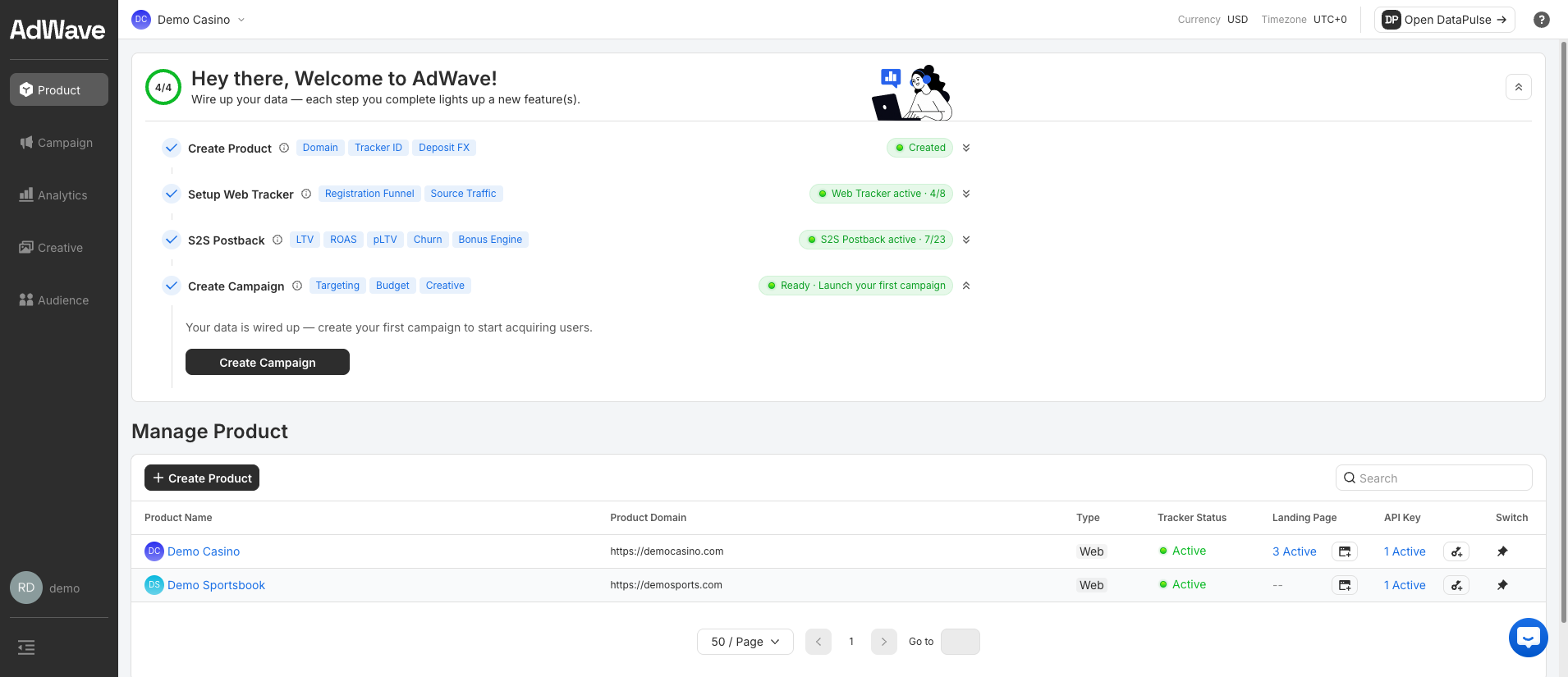
The AdWave home page tracks your setup. Each step turns green when it is done, and Create Campaign unlocks at the end.
How long does tracking take?
If players register on your website, the Web Tracker alone is enough, and you can launch the same day. To optimise for deposits recorded in your own backend, your developer also connects S2S, which takes about 2–5 days. See Tracking overview → Choose your setup.
2. Fill in your launch worksheet
Fill this in before you open AdWave. It covers every decision you make during setup, and each part matches a step in AdWave, so you only enter what you have already decided. Share it with your developer and your Account Manager: it answers most of the questions they would ask.
2.1 Your business
Used in: Product → Create Product
| Question | How to choose |
|---|---|
| Product name | A name you will recognise in reports, e.g. BrandX Casino |
| Main domain | Include https://, e.g. https://brandx.com |
| All landing page domains | List every domain ads will send traffic to: pre-landers, mirrors, redirects. An unregistered domain will not serve |
| Funnel Type for each landing page | Direct Register = players sign up on this page. Redirect Register = this page sends them to a sign-up page. The Download types work the same way for app installs |
| Deposit currency | The currency your back office settles deposits in. Choose crypto if you settle in crypto |
2.2 Goal and tracking
Used in: Product → Setup Wizard and the campaign's Target Event
| Question | Your answer | How to choose |
|---|---|---|
| Where do players land? | Web / App / Both | App campaigns also need AppsFlyer |
| Target event | Register / FTD / Bet / Landing Page Click | Start with Register if you have little conversion history. FTD (first-time deposit) needs deposit events to be tracked first. See Create your campaign → Target event |
| Where are deposits recorded? | My backend / Affiliate platform / AppsFlyer | This decides your tracking method (below) |
| Tracking method | Use the table below | |
| Who installs tracking? | Name + contact | A developer who can add a script to your site |
| If… | You need | Typical time |
|---|---|---|
| Web, goal = Register | Web Tracker | Same day |
| Web, goal = FTD, data in an affiliate platform | Web Tracker + Partner Postback | Same day |
| Web, goal = FTD, data in your backend | Web Tracker + S2S | ~2–3 days |
| App | Web Tracker + AppsFlyer (+ S2S for deposits) | ~3–5 days |
More detail: Connect tracking.
2.3 Where to advertise
Used in: the campaign's Target Geo
| Question | How to choose |
|---|---|
| Countries or regions | Up to 20 per campaign. For a first test, start with 1–3 markets you know well |
| Ad language per market | Match each market's language. If markets need different languages, prepare creatives for each, or run one campaign per language |
2.4 Ad format, bid and budget
Used in: the campaign's Ad Format, Bid & Daily Budget and Schedule
Pick one ad format per campaign:
| Format | What it is | Good for | Creatives needed |
|---|---|---|---|
| Pop | Your landing page opens in a new window | Fast conversion volume | None, only the landing page URL |
| Push | A notification-style ad | Reach and re-engagement | Logo, image, title, description |
| Display | A banner in a fixed position on a page | Visibility | Banner images |
| Native | An ad that looks like the site's content | Higher click-through | Image, title, description |
Bid and budget:
| Question | How to choose |
|---|---|
| Bid strategy | Choose oCPM (marked Suggested). You set the cost you want to pay per target event, and AdWave finds the traffic most likely to convert |
| Bid (USD) | With oCPM, the cost you want to pay per target event: your target CPA. Compare it with the Suggested Bid AdWave shows |
| Daily budget (USD) | oCPM: about 100× your bid, at least 50×. Example: a $2.50 bid needs about $250 a day, and no less than $125. CPM: at least 20× your bid |
| Test budget total (USD) | Daily budget × test days. This is the amount to ask your Account Manager to deposit |
| Start date | Now, or a future date |
| End date / cycle | 7, 14, 30, 60 or 90 days. For a first test, 14 days gives enough data to judge results |
2.5 Creatives
Used in: the campaign's Creative section
| Format | Asset | Spec |
|---|---|---|
| Pop | Landing page URL | One URL per offer. No image |
| Push | Brand logo | JPG/PNG, 192×192, ≤ 200 KB |
| Image | JPG/PNG, 360×240, ≤ 720 KB | |
| Title / description | ≤ 30 characters / ≤ 40 characters | |
| Display | Banner | GIF/JPG/PNG, ≤ 500 KB. Start with 300×250 · 300×100 · 320×50 (AdWave also accepts 728×90 · 468×60 · 160×600) |
| Native | Image + title + description | JPG/PNG, ≤ 500 KB, 300×250 |
Before you upload, check that:
- ✅ You have 8–10 creative sets, varied by offer, visual and message, so AdWave can find the best one
- ✅ Each creative is in the right language for its market
- ✅ The offer in the ad (e.g. "100% first-deposit bonus") matches the landing page
- ✅ Files meet the size and dimension limits above
See Creatives for what a creative set is, examples, and full specs.
2.6 Landing page
Used in: the campaign's Destination URL
Check your page:
- ✅ Loads in under 2 seconds on mobile data
- ✅ Shows the same offer and language as the ad
- ✅ Has one clear action (register or deposit) visible without scrolling
- ✅ The sign-up form asks only for what you need
See Landing page and conversion path.
2.7 Ready-to-launch checklist
- ✅ Wallet funded for the full test budget (through your Account Manager)
- ✅ Product shows Active in Manage Product
- ✅ Target event is being tracked (you can see it in the Product's Event Stream)
- ✅ Every destination domain is registered on the Product
- ✅ Geo, language and creatives match
- ✅ Bid, daily budget and schedule decided
- ✅ Someone checks results once a day for the first week
All ticked? Go to Create your campaign.
3. Your launch path
| Step | Page | You're done when… |
|---|---|---|
| — | Launch worksheet (above) | Every part has an answer |
| 1 | Account and wallet | Your wallet balance shows the deposit |
| 2 | Connect tracking | Your Product shows Active in Manage Product |
| 3 | Landing page & conversion path | Your page passes the landing page checklist |
| 4 | Creatives | 8–10 creative sets are ready to spec |
| 5 | Create your campaign | The campaign shows Live |
| 6 | Your first week | You have a full week of data and a decision: scale, adjust or stop |
| 7 | Optimise and scale | Your CPA is on target and budget is growing |
Questions along the way? See the FAQ.
4. Get help
- Stuck on tracking? Watch the Event Stream in Product → Setup Wizard to see what your site is sending, or see Web Tracker → Troubleshooting.
- Still stuck? Contact your Account Manager and attach your completed launch worksheet. It answers most of the questions they would ask.