
Install the Web Tracker
For: Advertisers and UA managers (Steps 1, 5–6), developers and tracking engineers (Steps 2–4)
The Web Tracker is a lightweight JavaScript SDK that streams events from your website to RevoSurge. Once events are flowing they light up the Registration Funnel and Source Traffic reporting, and they become optimisation targets for AdWave campaigns.
Revenue models — LTV, ROAS, Predicted LTV, Churn, and the Bonus Engine — need S2S as well. The Web Tracker is Step 2 of 4.
Time to complete: ~30 minutes.
Before you start
You need:
- A Product already created for your domain. If you haven't done that yet, start at Tracking overview → Create your Product — it takes a few minutes and issues the Tracker ID this guide begins with.
- Your website domain, and the ability to edit its
<head>— directly or through a tag manager such as Google Tag Manager. - Your stable user ID — the primary key your system uses for an account. You will pass this to every tracking call. See Choosing a user ID.
Which portal do I log into?
Either. AdWave (adwave.revosurge.com) and DataPulse (datapulse.revosurge.com) share the same Product list — create a Product in one and it appears in the other. Use the Open DataPulse / Open AdWave button in the top-right to switch.
Step 1 — Find your Tracker ID
Your Product's Tracker ID goes into the snippet in Step 3. It looks like TRA-AWP-20260827-052659-007-3119 — your Product ID with a TRA- prefix.
There are two places to copy it. Both have a copy button (⧉) next to the value.
Option A — Setup Wizard (fastest)
Product → Setup Wizard → Step 2 · Setup Web Tracker

Option B — Product detail
Product → Manage Product → click your product name. A panel opens. The Tracker ID is in the Web Tracker card.
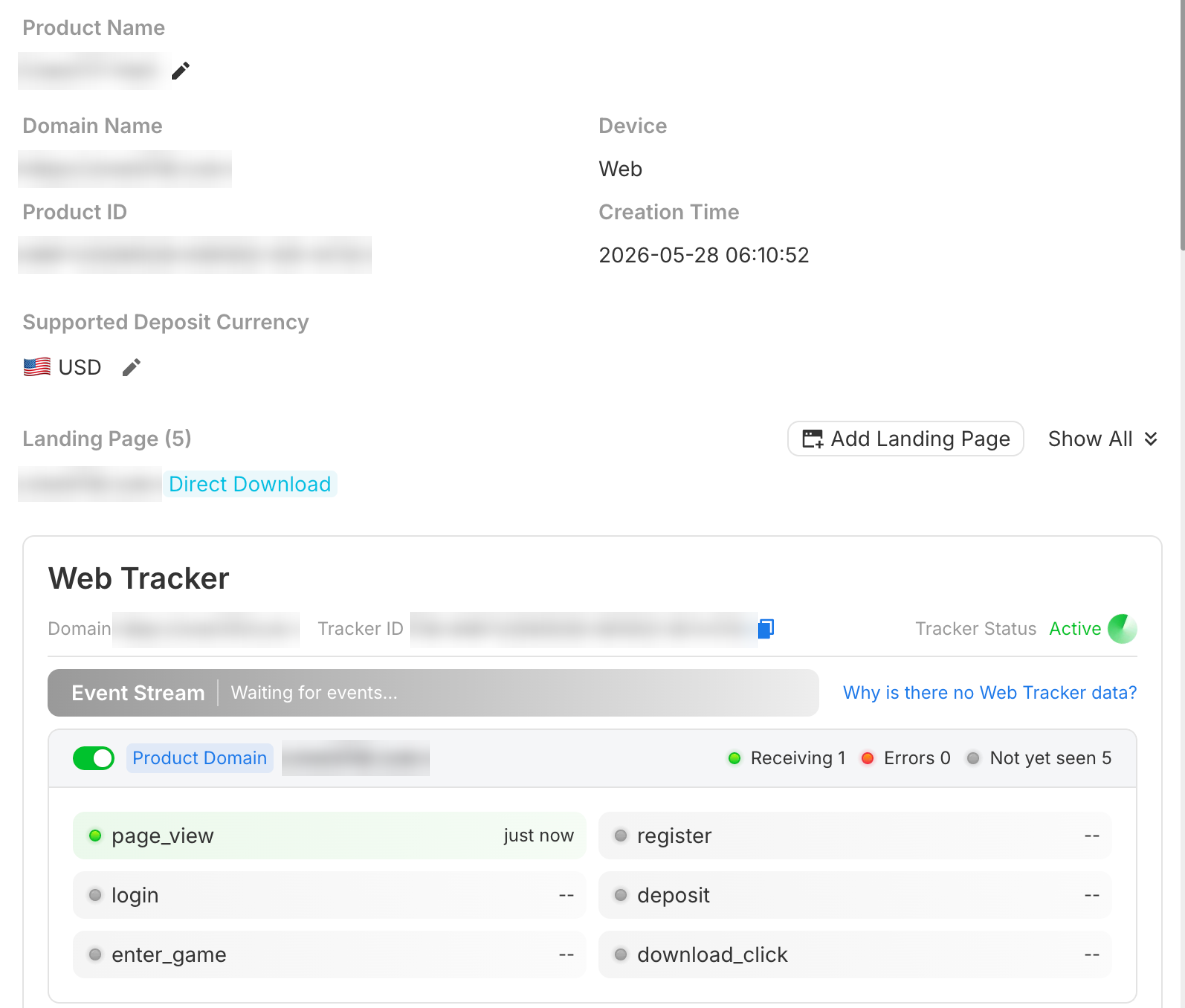
This panel also shows Product ID, Domain Name, Device type, Supported Deposit Currency, and every registered Landing Page with its Funnel Type.
There is no copy-paste snippet in the portal
The portal gives you the Tracker ID only — you assemble the snippet yourself using Steps 3 and 4 below. The View Integration Guide button in the Setup Wizard links back to this page.
Step 2 — Add the tracker script
Add this to the <head> of every page you want to track, as high up as possible so it loads before any user action can happen.
<script src="https://assets.revosurge.com/js/web-tracker.js"></script>Using Google Tag Manager?
Create a Custom HTML tag containing the snippet above, set the trigger to All Pages, and set Tag firing priority to a high number so the tracker is ready before any event tags run.
Using a single-page app (React, Vue, Next.js)?
Load the script once in your root document or layout — not per route. Initialise the tracker once (Step 3) and reuse the same instance across route changes.
Step 3 — Initialise the tracker
Initialise once, after the script has loaded. Replace the Tracker ID with the one you copied in Step 1.
const tracker = new WebTracker({
  trackerId: "TRA-AWP-20260827-052659-007-3119",

  // Optional — only if you use AppsFlyer as your MMP.
  // Use the App ID from your AppsFlyer dashboard, not the package/bundle ID.
  androidAppsFlyerId: "your-android-app-id-in-appsflyer",
  iOSAppsFlyerId: "your-ios-app-id-in-appsflyer"
});| Option | Type | Required | Description |
|---|---|---|---|
trackerId | string | Yes | Your product's Tracker ID. |
androidAppsFlyerId | string | No | The AppsFlyer App ID of your Android app (not the package name). Find it in your AppsFlyer dashboard under the app's settings. |
iOSAppsFlyerId | string | No | The AppsFlyer App ID of your iOS app (not the bundle ID). Find it in your AppsFlyer dashboard under the app's settings. |
Everything you send counts as live production traffic — there is no separate test environment to switch out of. Verify your events in Step 5 before you point campaign budget at them.
Using AppsFlyer as your MMP?
androidAppsFlyerId and iOSAppsFlyerId are only needed if you have integrated AppsFlyer as your MMP, so web-to-app journeys can be attributed. They are independent — set whichever platforms you have and omit the other. If you do not use AppsFlyer, leave both out.
Copy the Tracker ID exactly
A mistyped Tracker ID fails silently — the script loads, no error appears, and no events arrive. The portal's Web Tracker Help Center has a Tracker ID Match check for exactly this.
Step 4 — Send key events
Call a tracking method when the matching user action happens. Pass your stable user ID as the first argument — the one exception is trackCustomEvent, which takes the event type first and no user ID.
// New account created
tracker.trackRegister("user_123", {
  identifier: "sha256_hash_of_email_or_phone"
});

// Returning user signed in
tracker.trackLogin("user_123");

// Deposit completed
tracker.trackDeposit("user_123", {
  currency: "USDT",
  network: "TRON",
  amount: 100
});

// User entered a game
tracker.trackEnterGame("user_123", {
  currency: "USDT",
  game_provider: "Evolution",
  game_id: "lightning-roulette",
  game_name: "Lightning Roulette"
});

// App download button clicked
tracker.trackDownloadClick("user_123", { store_type: "android" });

// Anything else specific to your business
tracker.trackCustomEvent("mission_complete", { mission_id: "daily_7" });
The SDK exposes more methods than this, but the portal's Event Stream monitors six events per registered domain — these are the ones to wire up first:
| Event | Fires when |
|---|---|
page_view | Automatic — a tracked page loads |
register | A new account is created |
login | An existing user signs in |
deposit | A deposit completes in the browser |
enter_game | A user opens a game |
download_click | An app download button is clicked |
Full method list and every field: Web Tracker SDK Reference.
Choosing a user ID
Use the same ID your own system uses for the account — your user table's primary key. Do not use a session ID, cookie ID, or anonymous visitor ID.
The same value must be used as client_user_id in your S2S events. If the two don't match, RevoSurge treats web activity and server activity as two different people and your attribution breaks.
Never send raw PII
Pass identifier as a SHA-256 hash of the user's email or phone, hashed on your side before the call. Do not send raw emails, phone numbers, or names.
Step 5 — Verify in the portal
Deploy, then load a tracked page in your browser.
5.1 Watch the Event Stream
Go to Product → Setup Wizard → Step 2 · Setup Web Tracker, or open the product and look at the Web Tracker card.
You'll see one block per registered domain — your Product Domain plus each Landing Page. Each block lists the six events with a status dot and a "last seen" timestamp, and a summary of Receiving / Errors / Not yet seen. Each domain also has an on/off toggle — a domain switched off collects nothing.
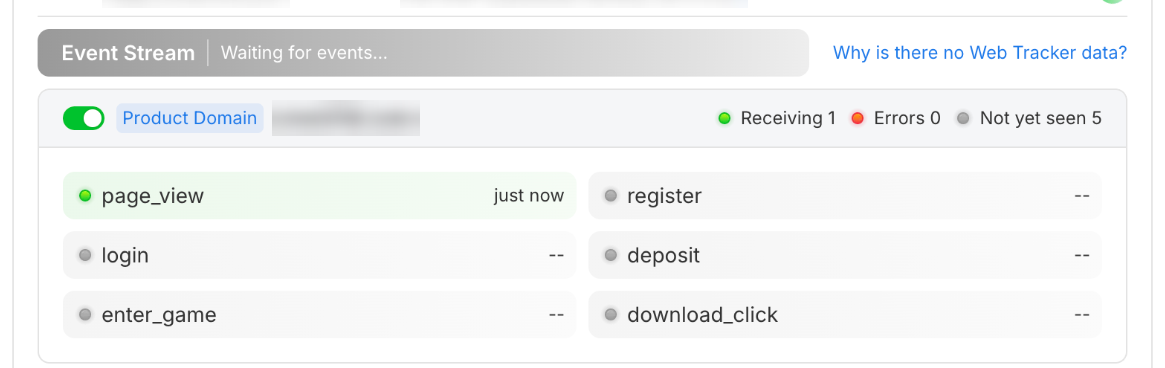
Events usually appear within a minute. page_view should turn green almost immediately.
5.2 Check Tracker Status
Tracker Status appears at the top-right of the Web Tracker card.
| Status | Meaning |
|---|---|
| Active | Events are arriving |
| Inactive | No recent data received |
5.3 Run the diagnostics if nothing arrives
Click Why is there no Web Tracker data? to open the Web Tracker Help Center. It runs five checks against your live traffic and tells you which one failed.
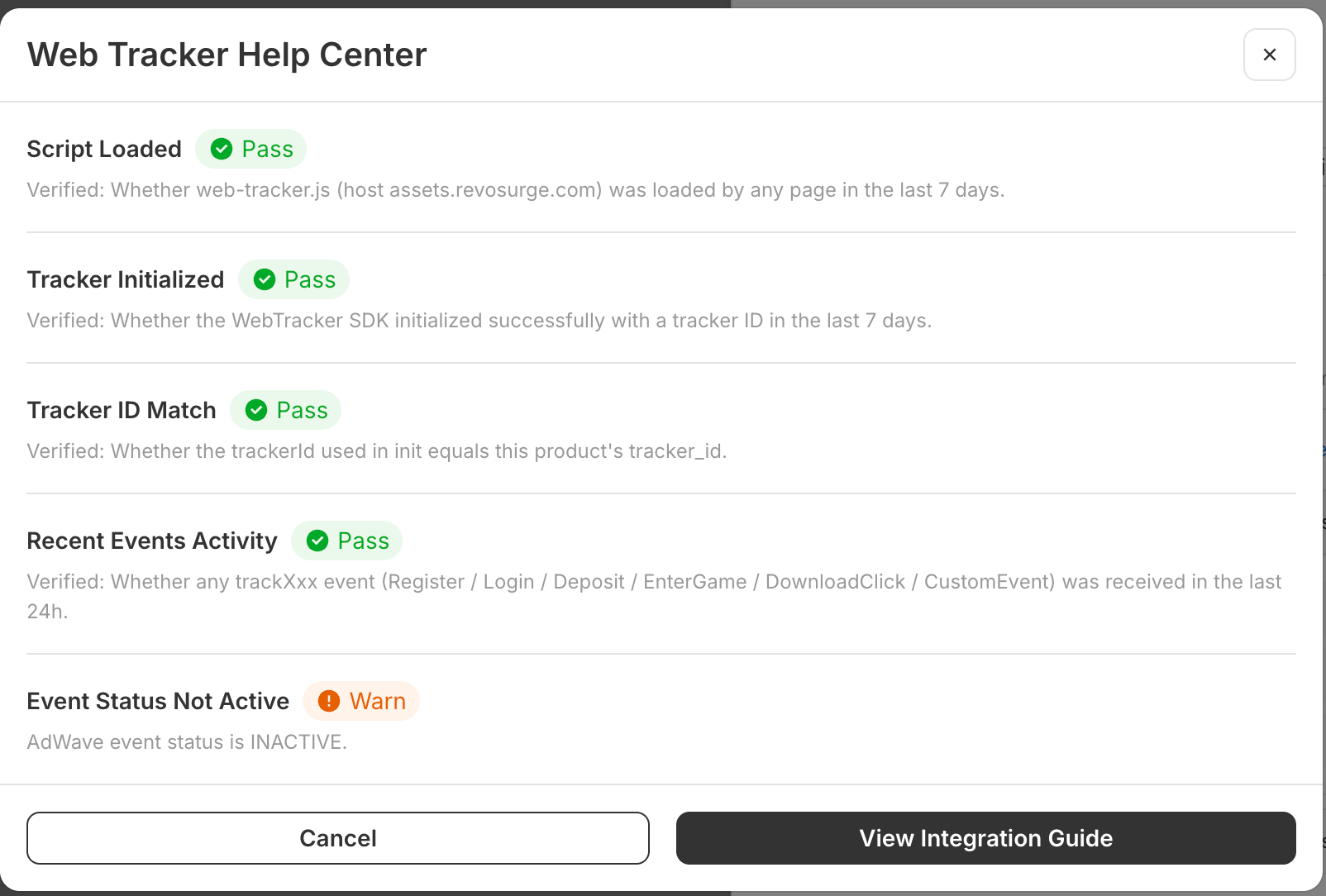
| Check | What it verifies | If it fails |
|---|---|---|
| Script Loaded | web-tracker.js (from assets.revosurge.com) was loaded by any page in the last 7 days | The <script> tag is missing, blocked, or on the wrong pages — recheck Step 2 |
| Tracker Initialized | The WebTracker SDK initialised with a tracker ID in the last 7 days | new WebTracker({...}) isn't running, or runs before the script loads — recheck Step 3 |
| Tracker ID Match | The trackerId passed to new WebTracker({...}) equals this Product's tracker_id | You pasted the wrong ID, or a different Product's ID — recheck Step 1 |
| Recent Events Activity | Any trackXxx event (Register / Login / Deposit / EnterGame / DownloadClick / CustomEvent) arrived in the last 24h | The script works but your event calls aren't firing — recheck Step 4 |
| Event Status Not Active | Whether the AdWave event status for this Product is active | A warning, not a blocker. Events are arriving but the Product is not yet marked active for campaign use — finish the remaining Setup Wizard steps |
Step 6 — Go live
When your key events are arriving and Tracker Status reads Active:
- ✅ Set up S2S or Partner Postback so deposits are counted server-side
- ✅ Connect AppsFlyer if you promote a mobile app
- ✅ Launch your first AdWave campaign
Don't stop at the Web Tracker
Browser-reported deposits under-count — ad blockers, closed tabs, and payment redirects all drop events. LTV, ROAS, Predicted LTV, Churn, and the Bonus Engine need S2S. The Web Tracker is Step 2 of 4, not the finish line.
Troubleshooting
Events aren't showing up at all
- Open your browser's Network tab and reload a tracked page. Look for
web-tracker.js— if it isn't there, the script tag is missing or blocked. - Open the Console and type
WebTracker. If it's undefined, the script hasn't loaded. - Confirm
new WebTracker({...})runs after the script loads. - Check the Tracker ID character-for-character against Product → Manage Product → [your product] → Web Tracker.
- Run the Web Tracker Help Center — it tells you which stage is failing.
page_view arrives but register / deposit don't
The script and Tracker ID are correct — your event calls aren't firing. Add a console.log next to each tracker.trackXxx(...) call and confirm it executes. A common cause is calling the tracker after a page redirect has already started.
The domain shows in the portal but has a toggle switched off
Each registered domain has an on/off toggle in the Web Tracker card. A domain that's switched off won't collect. Switch it on.
My campaign won't serve — "Destination URL must match an active domain"
The URL your campaign points at isn't registered on this Product. Add it as a Landing Page URL with the right Funnel Type (Tracking overview), install the Web Tracker on it, and wait for it to show as active.
Can I track from my server instead of the browser?
Yes — and for revenue you should. See Server-to-server (S2S) overview. Most advertisers run both.
I promote a mobile app — does the Web Tracker still matter?
Yes, and more than you'd expect. When you set your AppsFlyer App ID in Step 3, the snippet forwards each ad click to AppsFlyer so the install can be attributed back to us. A landing page without the snippet forwards nothing, and every install it drives is counted as organic. See AppsFlyer overview.
Related
- Tracking overview — all four tracking methods compared
- Web Tracker SDK Reference — every method and field
- Server-to-server (S2S) overview — send events from your backend
- AppsFlyer overview — app installs and in-app events
- Create your campaign